Access
- Datahub in the Browser
- The Login Node
- Remote Editor Setup
- When Access Starts & Ends
- Sign-In & Session Problems
datahub.ucsd.edu provides browser-based access to course environments. It requires a browser, UCSD campus credentials, and Duo; no local installation or command-line experience is needed.
Datahub uses the standard campus sign-on, the same one used by other UCSD services. Nothing Datahub-specific is entered at sign-in. An account that cannot get past the campus sign-in page has a credential problem, not a Datahub problem, and the ITS Service Desk handles it.
The Active Directory username is required at a different prompt, ssh to the
login node, which does not accept the full address.
Connecting over SSH describes that
prompt.
After sign-in, Datahub lists the courses available to the account and, within a course, the environments configured for it.
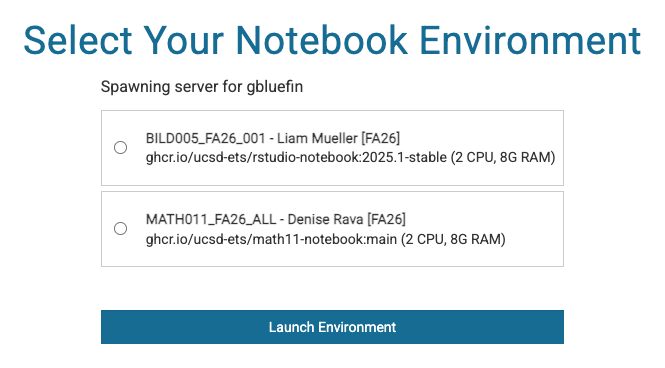
Each Datahub course appears separately and holds its own files. Students and instructors enrolled in more than one course select among them in this list. Belonging to Several Workspaces describes membership in more than one workspace.
The options in the environment menu are set by the course instructor. The menu commonly holds one CPU option, and a GPU option in courses that use GPUs. Environments not present in the menu are added by the instructor. What a Workspace Is and What It Controls describes the settings a course workspace controls.
An environment takes one to two minutes to start, and longer while the cluster is busy. The live state of the cluster is shown on the status page. See The Status Page.
By default, a browser session starts with 2 CPU cores and 4 GB of RAM. This is the course spawn configuration, set per course, and a course can configure more. The environment menu shows each option's size. The defaults applied by the command-line launch scripts are a separate figure that describes a different object. See Working from the Command Line.
A session provides JupyterLab, with notebooks, a file browser, a text editor, and a terminal. Files persist between sessions. Customizing an Environment describes installing software within an environment, and the conditions under which an installation persists.
A member may have one Datahub session running at a time. The limit applies to Datahub itself, and it counts sessions, not environments or courses. Working in a different course environment requires stopping the running session first. See Stopping a Session.
The one-session limit does not extend to work launched from a shell. SSH
sessions, VS Code containers, and batch jobs run alongside a Datahub session,
and alongside each other, in any number. Launching a container from
dsmlp-login while a browser session is open is ordinary use and does not
conflict with the session.
Total CPU, memory, and GPU across everything a member has running must fit within the Kubernetes limits set on the member's namespace and, where GPUs are involved, within the reservation system's limits. A launch is refused when the total would exceed them, whatever mix of sessions makes up that total. Running Several Jobs at Once describes running several jobs together.
Warning
Signing out does not stop a session, and neither does closing the browser tab. The container continues to run and holds its CPU, its memory, and its GPU where one is attached.
To stop a session, use File → Hub Control Panel → Stop My Server. The interface may take a short time to reflect the change.
Where the browser session cannot be reached at all, as with a stale profile or a page that will not load, the manual-resetter under the services dropdown at datahub.ucsd.edu stops any running servers and resets the profile, leaving files untouched. The procedure is in "Spawn Failed".
Two pages at datahub.ucsd.edu report storage use and cluster capacity.
| Page | Location | Contents |
|---|---|---|
| Disk usage | datahub.ucsd.edu/hub/spawn → Services tab → disk-quota-service | Storage in use against the account quota |
| Cluster status | datahub.ucsd.edu/hub/status | Cluster nodes, the GPU models on them, and free GPU counts |
Warning
A full quota prevents a session from starting and produces no error message.
Workspace and Personal Quotas describes the storage pools and their quotas. See The Status Page.
See also: Recovering from a Full Quota
Most failures to reach a session resolve to one of these conditions:
.local breaks the environment.Sign-In & Session Problems covers each condition.