This page is for students whose course uses Datahub, working entirely in a
web browser at datahub.ucsd.edu. If you are not
enrolled in such a course, start at Where to Begin.
Signing In
- Go to datahub.ucsd.edu and sign in through
UCSD single sign-on with your campus credentials. Duo applies. Datahub
has no separate credentials.
- Select the course. If you are enrolled in more than one course that uses
Datahub, each course is listed separately. See
Belonging to Several Workspaces.
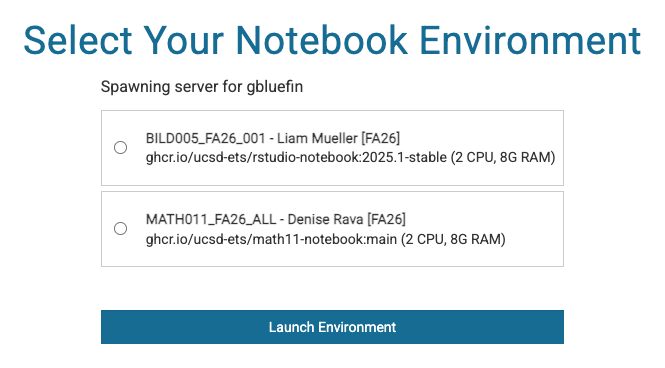
- Select an environment. Your instructor decides what appears in this menu.
Most courses offer one CPU option and, where the course uses them, a GPU
option.
- Wait for the environment to start. A launch can take a minute or two, and
longer when the cluster is busy.
Your files are in the file browser on the left, and they persist between
sessions.
Starting and Stopping Sessions
Warning
Signing out or closing the tab does not stop your session. The container
keeps running and holding its resources, including its GPU if it has one. To
stop it, select File → Hub Control Panel → Stop My Server.
A session also ends on its own when it reaches its time limit, and a GPU
session ends when you leave it idle. Saved files persist when a session ends;
unsaved work is lost. Stopping your session is also how you release a GPU you
have finished with. See
Stopping a Session.
One Datahub Session
You can have one Datahub session running at a time. To start a different
course environment, stop the running one with
File → Hub Control Panel → Stop My Server. The limit applies only to
Datahub: work you launch from a terminal runs alongside it. See
Concurrent Datahub Sessions.
Sign-In and Startup Failures
| Symptom |
Usual cause |
| Your course is not listed |
Your enrollment has not propagated yet. Your instructor can check the roster. See Students Enrolled in a Course |
| Sign-in fails at the campus sign-on page |
A campus credential or Duo problem rather than a Datahub one. The ITS Service Desk handles it |
| "Spawn failed", or the spinner never completes |
A failure within moments can come from a full disk quota or a broken package you installed into your own .local. A failure after a long wait can come from a busy cluster or a slow download of the environment's image. A stale profile can also prevent a start, and the manual resetter under the services dropdown clears it. See "Spawn Failed" |
| Everything loads but your files are missing |
Your session may be in a different course's workspace than you intended. Check which course you selected |
See also: Sign-In & Session Problems
Working in the Course Environment
Session Resources
Your course session typically begins at 2 CPU cores and 4GB RAM of its own.
Upper limits depend on class size, demand, and capacity. See
The Browser Session.
Directories
Your home directory is private to you and specific to one course. A shared
area that everyone in the course can read is where datasets and starter
notebooks usually appear. A private area follows you into every course you
take. See
Where Files Live.
Storage Quota
Your course home directory holds notebooks and modest data. Use a large
dataset from the shared area rather than making a personal copy.
Workspace and Personal Quotas
gives the quota sizes.
Installing Packages
You can install Python packages into your own environment.
Installing Python Packages Into a Private Kernel
gives the steps. You cannot install system-level packages, because containers
run unprivileged. If your course needs a system library, ask the instructor to
request it. See
Root Access and System Packages.
Moving Files
Drag and drop in the file browser handles small files. For larger transfers,
see Moving & Sharing Data.
Assignments
Most courses distribute, collect, and grade notebooks with tools built into
the environment. Your instructor tells you which tool the course uses and how
to fetch and submit work. If an assignment will not fetch or submit, report it
to your instructor or TA before opening a ticket.
See also: Grading
Using a GPU
If your course offers a GPU option, selecting it is all you need to do.
Service Unit Budget
Warning
Starting a GPU session books capacity and draws on your Service Unit (SU)
budget for the course, even if you do not use the reservation calendar.
Launching the session is what authorizes that spend, and a session you leave
running costs the same as one you are using.
Your course budget renews each week, and you book your own windows. If your
budget runs out, ask your instructor or TA. They can request an increase, or
book a window on your behalf. A booking they make on your behalf is still
charged to your own budget, and can leave it overdrawn until it renews. See
On-Demand Lease Charges
and Service Units & Budgets.
Idle GPU Sessions
If your GPU session stops using its GPU, it is reclaimed after a period of
idleness. A warning comes first. See
What Counts as Idle.
Reservations
If you need a GPU at a known time, reserve one in the reservation app at
reserve.dsmlp.ucsd.edu. A reservation
guarantees access, not a running job. Launch your notebook as usual, and it
goes onto the reserved capacity ahead of the walk-up queue. See
Reservations.
If you miss the start of a booked window, you can still claim it within a short
grace period. After that, the reservation is cancelled, the capacity returns to
the pool, and a cancellation charge applies. The same happens when your session stops
partway through a booking and you do not restart it within about 30 minutes.
Your instructor or TA can waive the charge where warranted. Cancelling at least
24 hours ahead costs nothing; a later cancellation keeps part of the cost. See
The Claim Window and
The Cancellation Penalty.
Reservation Events
The reservation system reports on your GPU session with Kubernetes events.
Datahub shows them while a session starts, and kubectl describe pod shows
them from the command line.
Reservation Events defines each one:
- While a session waits:
WaitingForReservation, ReservationFull,
ReservationTooSmall, OnDemandLeaseDenied, OnDemandLeaseRejected,
OnDemandAdmissionPaused, UnknownGpuClass, NoReservation,
NoGpuRequest, AnnotationIgnored, NoMatchingNode, WaitingForNode.
- When it is admitted:
RuntimeGuaranteed, ReservationRelinked,
OverstayRelinked, BestEffortAdmitted.
- When it is stopped:
Preempted, ReservationCancelled,
ReservationReassigned.
Problems in a Running Session
| Symptom |
Cause and remedy |
| The kernel keeps dying on a large dataset |
Out of memory. Load less at a time, or ask your instructor whether a larger option is available |
| The notebook is slow and unresponsive |
Check what else you have open. Every notebook holds its own kernel and its own memory |
[Errno 122] Disk quota exceeded when saving |
Your storage quota is full. See Common Causes of a Full Quota |
| Your session ended while you were away |
Expected when a session reaches its time limit, or when you leave a GPU session idle. See Starting and Stopping Sessions and Idle GPU Sessions |
| GPU code reports no device found |
Your session may not have a GPU. Check which environment you selected |
For problems that need a terminal to diagnose, see
Working from the Command Line.
See also: Error Messages
Duration of Access
You keep access for one additional quarter beyond the term in which the course
ran: a Fall course stays available through the end of Winter. Summer does not
count against a Spring course. Retrieve anything you need before that period
ends. See
One Additional Quarter.
Maintenance and Policy
Datahub may be unavailable during scheduled maintenance for time-sensitive
updates or security patches. Quarterly maintenance ends every running job.
Scheduled Maintenance gives the
schedule. Policy gives the rules on acceptable use and
data classification.
Work That Requires a Terminal
Working from the Command Line covers SSH,
launch.sh, background and batch jobs, VS Code, and GPU classes that a course
menu does not offer. Command-line work uses the same course access. There is no
eligibility requirement, and you have nothing to request.
Support
Take course questions, such as assignments, packages your course needs, and
the environment your course provides, to your instructor or TA. They are the
first tier of support. Take platform problems, such as being unable to sign in
or the service behaving differently than documented, to the
ITS Service Desk or
parasol@ucsd.edu. In a ticket, name the course, say
what you were doing, give the exact error, and include a screenshot.
See also: Response Targets, Getting Help
Report a problem with this page