From Fall 2026, every GPU session on PARASOL (formerly DSMLP) runs under a reservation: either a
booking made ahead in the reservation app, or an on-demand lease that the
reservation system creates when a session launches without one.
The Reservation App
The reservation app is at
reserve.dsmlp.ucsd.edu. Sign in with UCSD
single sign-on. The sidebar lists these pages:
| Page |
Use |
| Dashboard |
Reservations for today and tomorrow, the Service Unit (SU) budget, the GPU classes the member can book, and upcoming availability |
| New Reservation |
Book a window |
| My Reservations |
List, cancel, extend, and adopt reservations |
| Rates |
The SU rate of every GPU class for each hour of the week |
Workspace managers see further pages.
Managing a Group describes them.
Members of a workspace in
researcher mode also see Group Reservations; see
Researcher Mode.
Times in the app are Pacific time, wherever the viewer is. No time zone is shown
next to them. The booking wizard also uses Pacific time to decide which hours
have passed. Two times on the manager pages follow the viewer's browser
instead; see
Viewing the Group's Reservations.
Reservation App Sign-In
covers sign-in problems, including an expired session.
Reservation Types
| Type |
Created by |
What it costs |
What protects it |
| Booking |
The member, in the reservation app, ahead of time |
SU for the window, charged when it is booked |
A runtime guarantee to the end of the window |
| On-demand lease |
The reservation system, when a GPU session launches with no booking |
SU for the lease, as for a booking |
A runtime guarantee to the end of the lease |
| Best-effort |
Not enabled on PARASOL |
None |
None |
A reservation guarantees access, not a running job. Nothing starts when a
booked window opens. A notebook, a shell session, or a batch job is launched in
the usual way and is admitted onto the booking. See
The Claim Window.
Booking a Window
- Select New Reservation.
- On Select Group, choose the workspace. A member of only one bookable
workspace goes straight to the next step. A workspace marked
On-demand only cannot be booked.
- On Select GPU Class, choose the class. Each card shows the class's SU
rate per GPU-hour and how many GPUs are free today and tomorrow.
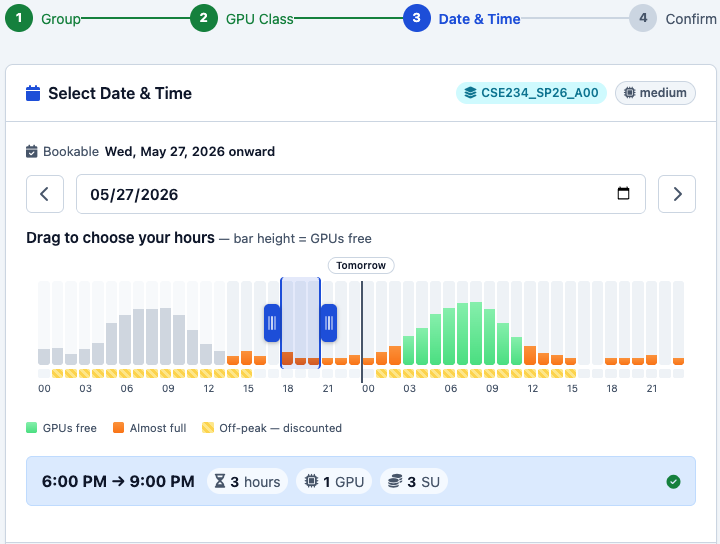
- On Select Date & Time, set the number of GPUs and drag across the
timeline to choose the hours. Hours with too few free GPUs, or with no quota
left for the workspace, are dimmed and cannot be booked. An amber strip marks
discounted off-peak hours. The line below the timeline shows the hours and
the SU cost. Select Next.
- On Confirm Reservation, add notes if needed and select
Confirm Reservation.
Next checks the booking against every rule before the confirm step, and a
refusal appears at the top of the page.
Booking Refusals in the Reservation App
lists the refusal messages and their fixes.
The server checks again on Confirm Reservation, because capacity can change
in between.
Booking Rules
| Rule |
Value |
| Granularity |
Whole hours |
| Earliest start |
At least 15 minutes from now. This rule is separate from the claim window |
| Across midnight |
Allowed. The timeline shows the chosen day and the next, and the booking must start on the chosen day |
| Longest selection in the wizard |
48 hours, for everyone. A workspace's own length cap, 12 hours by default, is shorter; see Reservation Length Caps |
| Changing a booking |
Not possible before it starts: cancel it and book again. Once it has started, Extend replaces it with a new booking |
| Back-to-back bookings |
Allowed. A booking that starts when another ends, for the same class, number of GPUs, and workspace, extends a running session's guarantee through both. The two stay separate reservations. See Back-to-Back Bookings |
| Several bookings at once |
Allowed, including overlapping ones, within the budget and the capacity available |
| GPUs in use at once |
1 per account by default, however many are booked. Using overlapping bookings together, or a booking of more than 1 GPU, needs ITS to raise the account's limit first. See Resource Tiers |
A booking's SU cost is fixed when it is made. A booking stands once it is made,
even if the workspace's quota is later reduced.
Notes and Emails
Notes on a booking are visible to the workspace's instructors, TAs, and
administrators, to teammates in Team Mode, and to the whole
workspace in Researcher Mode.
The Email me reservation confirmation & reminders checkbox is saved to the
member's profile and applies to every reservation, not only the one being made.
Reminder emails before a booking begin mid-quarter in Fall 2026. On-demand leases
send no email.
The Booking Horizon
In course and research workspaces alike, a booking must by default end within
10 days of the moment it is made. The horizon is rolling: at 7 PM on a Monday,
it reaches 7 PM ten days later. A booking needs no more notice than the
earliest start in Booking Rules. The wizard shows the
bookable range above the timeline, for example
Bookable Wed, Sep 23, 2026 – Sat, Oct 3, 2026 7:00 PM. Workspace managers are
not bound by the horizon when they book.
See also: Borrowing Beyond Quota
Reservation Length Caps
Two caps apply to the length of one reservation. The shorter one binds.
| Cap |
Applies to |
Value |
| The workspace length cap |
Every reservation in the workspace, by anyone, administrators included |
12 hours by default, in course and research workspaces alike. It can be set higher on request |
| The member cap |
A member's own booking |
48 hours. Workspace managers and administrators are exempt, and Researcher Mode lifts it |
Only cluster administrators set the workspace length cap. A workspace manager
cannot change it. Request a change by ticket to
parasol@ucsd.edu, stating the length needed and how
the work checkpoints. A course's cap is changed at the instructor's request,
and a research workspace's at the researcher's.
The wizard selects at most 48 hours for everyone. A longer booking, where the
workspace allows one, is made on the Group Reservations page, which
workspace managers and researcher-mode members can use.
See also: What a Workspace Is and What It Controls
Reservation Length and Session Runtime
A reservation's length and a session's runtime are separate limits. A long
booking does not by itself grant a long-running session.
A session, the pod a launch creates, runs for 6 hours by default and up to 12
hours where that is set at launch. See
The Runtime Limit.
The runtime limit applies to a session under a booking as it does to any other.
For a workaround, write to parasol@ucsd.edu.
Warning
When a session under an open booking stops at its runtime limit, start a new
one within about 30 minutes, or the rest of the booking is cancelled as a
no-show and charged. See
Relaunching Inside a Booked Window.
A run that writes its progress to durable storage at intervals can be picked up
again; a single uninterruptible process cannot. See
Checkpointing & Logging Long Runs.
Idle culling applies to a session for its whole life, however long the
reservation behind it, and a reserved GPU that stops being used is reclaimed
like any other
(What Counts as Idle).
Reservation Statuses
My Reservations lists the member's own reservations and, in team mode, the
teammates'. The Status filter has three settings:
| Filter |
Shows |
| Recent & Upcoming (default) |
Every reservation that has not ended and is not cancelled, and any reservation, cancelled or not, from the last 24 hours |
| All Reservations |
Every active reservation, and cancellations that had started or were charged. A booking cancelled free of charge appears only under Cancelled |
| Cancelled |
Cancelled reservations |
Select Filter to apply a change. The list is ordered oldest first.
| Badge |
Meaning |
| Upcoming |
The window has not started |
| In Progress |
The window is open now |
| Past |
The window has ended. An on-demand lease whose job is still running also reads Past; the Dashboard lists it under Running Past Window |
| On-demand |
An on-demand lease, shown beside the status badge |
| Superseded |
Replaced by an Extend, or by a lease merging into a booking. The job kept running |
| Ended |
An on-demand lease whose job ended, or that was cancelled |
| Ended early |
A booking cancelled after it started |
| Cancelled |
A booking cancelled before it started, or cancelled as a no-show |
Launching Without a Booking
Warning
Launching an eligible GPU session without a booking creates an on-demand
lease and charges the member's Service Unit budget as a booked window would;
there is no free exploratory launch. See
On-Demand Lease Charges.
A GPU session is given an on-demand lease when the member has no matching
booking open, or opening within 30 minutes. Every GPU session that carries a
class label qualifies. A session limited to a node with -n, or to a GPU model
with -v, is given its lease only once a node it allows has a free GPU, and is
not charged before then; see
Node Selection. The
lease covers the session's declared runtime plus 10 minutes. A session that
declares no runtime is given 1 hour, so a session launched with the defaults
holds a lease of 1 hour 10 minutes. The declared
runtime is separate from the runtime limit in
Reservation Length and Session Runtime,
which stops the pod.
For a longer guarantee, launch with the defaults and use Extend in the
reservation app once the session is running. See Extend.
A lease ends when its session ends: stopping the session cancels the lease, and
the charge is for the time used. See
On-Demand Lease Charges.
The Default Workspace
A lease is charged to the workspace that the pod's dsmlp/course label names.
launch.sh -W <workspace> sets that label. A session whose pod names no course,
such as a command-line launch without -W, is charged to ORG_ON_DEMAND, a
workspace that every user is enrolled in automatically.
ORG_ON_DEMAND accepts on-demand leases only and cannot be booked. It has the
default budget and length cap. See
The Size of a Budget and
Reservation Length Caps. A job there can keep
running after its reservation ends, with no guarantee; see
Overstay. The runtime limit still stops the
pod. Its leases appear in My Reservations like any other.
Availability and Denied Leases
A lease is refused when the class has no free GPU, the workspace holds its GPU
limit for the class, or the budget cannot cover it. The pod then stays
Pending with an OnDemandLeaseDenied event, and the request is retried until
it succeeds or the pod is deleted. The event says whether waiting can help. A
lease can also be refused for the request itself, such as a class the workspace
was not granted, and waiting does not change that. The pod stays Pending until
it is deleted and launched again with the request corrected, or until an
administrator changes the setting that refused it. Nothing fails the pod or
deletes it. Datahub shows the event while the session is starting. See
Waiting for an On-Demand Lease
and Reservation Events.
Choosing Between Booking and Launching
| Situation |
Route |
| A GPU is needed at a set time, such as Thursday evening |
Book a window |
| A short experiment, now, at 11am |
Launch without a booking. Daytime capacity is generally idle |
| A run of several hours |
Book a window within Reservation Length Caps, or launch and then Extend |
| Work whose answer is not needed today, done cheaply |
Run it off-peak; see Peak & Off-Peak Hours |
The Claim Window
A booked window must be claimed within 15 minutes of its start. A booking is
claimed when a matching session is waiting for it or running under it. There is
no confirmation step and no control that selects a booking: the reservation
system matches a session to a booking by itself.
Warning
If no matching session is waiting or running 15 minutes after the start, the
booking is cancelled as a no-show and charged, and the capacity returns to the
pool. A command-line launch without -W never matches a course booking. A
session started after the no-show matches nothing and is given an on-demand
lease, charged separately. See
The Cancellation Penalty.
The claim window is measured from the start of a window already held. It does
not govern how far ahead a booking may be made.
Claiming a Booking
A session claims a booking when all of these hold:
- The pod runs in the member's own namespace, as every launch does.
- Its
gpu-class label is the class booked.
- Its
dsmlp/course label names the workspace the booking was made under.
launch.sh -W <workspace> sets the label.
- It asks for no more GPUs than are free in the booking.
Where several bookings match, the one that starts soonest and has room is used.
Two bookings are never combined for one pod.
A session that does not match does not claim the booking. It is given an
on-demand lease, charged separately, and the booking is cancelled as a no-show
if nothing else claims it. A pod that names no course, such as one launched
without -W, is treated as belonging to ORG_ON_DEMAND, so it never claims a
course booking. kubectl describe pod lists a pod's labels.
Launching Before the Window Opens
| Session started |
What happens |
| Up to 30 minutes before the start |
The pod waits, with a WaitingForReservation event, and is admitted within about 5 minutes of the opening. The waiting pod claims the booking |
| Earlier |
The session starts on an on-demand lease and is charged for it. When the booking opens, the session moves onto the booking with a ReservationRelinked event, and the lease is retired without penalty. The charge is for the early time only |
Relaunching Inside a Booked Window
When the last session under an open booking ends, start another matching
session within about 30 minutes. Otherwise the rest of the booking is cancelled
as a no-show and charged. This applies however the session ended: idle culling,
the runtime limit, the job finishing, or a manual stop. A long break with the
session stopped can therefore cost the rest of a booking. Cancel the rest of a
booking that will not be used.
Planning a Long Window
Book the GPU class the work needs rather than the largest one available.
GPU Classes covers class selection.
Service Units & Budgets covers booking costs.
Unused time can be released by cancelling the rest of the booking. Releasing it
is not always free: the charge depends on how much of the booking was used and
how much remains. See
The Cancellation Penalty.
Continue, Extend & Adopt
Extend is the reservation app's name for the operation the reservation
system's interface calls "continue". The two names mean one operation. Adopt
belongs to team mode.
Extend
Extend keeps a running job protected for longer. On My Reservations or the
Dashboard, select Extend on the job's reservation, choose how much time
to add under Extend by, and select Extend.
- Extend adds 1, 2, 4, 8, or 24 hours after the end of the job's reservation,
or after the current time if that end has passed. Each choice shows the new
end time and an SU estimate for the added time.
- Extend starts a new booking now that runs to the new end, and moves the
running job onto it. A reservation that still has time left is marked
Superseded and charged only for the time used, with no penalty, so the
net charge is for the added time.
- The new booking is charged when it is made. The estimate in the dialog is at
the full rate and does not include off-peak discounts.
- Extend is offered on a booking that is in progress, and on an on-demand lease
during or after its window. Only the job's owner sees Extend. A teammate
cannot Extend another member's job.
- The workspace length cap applies to the whole new booking, from now to the new
end, so the time left on the old reservation counts toward it. A workspace
with the default cap refuses 24 hours. The 48-hour member cap does not apply.
- Extend cannot shorten a reservation. The reservation system refuses a new end
earlier than the current one, and leaves the reservation unchanged.
- Extend can be refused for capacity or budget. A refused Extend changes nothing.
Warning
An Extended reservation is a booking, and a booking is not released when its
job ends. Cancel it when the job finishes. Otherwise it is cancelled as a
no-show about 30 minutes later. Either way, the unused time is charged on the
scale in
The Cancellation Penalty.
Adopt
In team mode, a teammate's booking that has not ended shows Adopt on
My Reservations. Adopting it transfers the booking to the adopter, and it
then runs under the adopter's namespace. Adopting a booking that is in progress
deletes the teammate's running pod, which records a ReservationReassigned
event.
Routes to More Time
Book the full time the work requires at the outset, within the workspace length
cap, or Extend a running job. A run that checkpoints can resume from
disk after a window ends. See
Checkpointing & Logging Long Runs.
Running Past the Window
There is no hard kill when a window closes. Past the window, the session keeps
running and draws no Service Units, but it is no longer protected: it can be
stopped when a booking needs its GPU, or to keep part of the class free. See
Overstay and
The Countdown.
Bookings by a Workspace Manager
In a course, students book their own windows. An instructor, TA, or PI can
book on a member's behalf when the member cannot, such as when the member's
budget is spent or the window is beyond the booking horizon. The booking is
charged to the member's budget. The manager skips only the check that the member
can afford it, so the booking can leave the member at or over budget, which
blocks the member's own bookings and on-demand leases until the budget window
renews. The workspace length cap applies to a manager's booking as to any
other. See Managing a Group.
Best-Effort Reservations
Best-effort admission, which runs a session with no runtime guarantee and no
charge, is not enabled on PARASOL. A pod that asks for it is admitted on an
ordinary on-demand lease and charged for it, and records an AnnotationIgnored
event. Best-effort reservations do not appear in the reservation app.
Team Mode
A workspace can run in team mode. Teams come from the course roster.
- The SU budget is a ceiling for the whole team rather than for each member.
The Dashboard shows it as Team budget.
- Teammates see one another's reservations on My Reservations and the
Dashboard, and can cancel them and Adopt them.
- A teammate cannot Extend another member's job.
- A penalty from a teammate's cancellation cannot be waived at the time of the
cancellation. A workspace manager can waive it afterwards; see
Having a Charge Waived.
Team Data and the -G Flag
The launch.sh -G flag controls which team data is visible, not reservations.
-G list prints the teams an account belongs to, and -G <teamid> launches
with that team's data visible under teams/. No connection between this flag
and team mode in the reservation system is documented.
Sections, Teams and Group Data
describes team data.
Researcher Mode
In a workspace in researcher mode, every member can see every reservation in the
workspace, with usernames and notes, on the Group Reservations page. A member
can book for themselves past 48 hours with that page's New Reservation form,
up to the workspace length cap. A member cannot cancel or change another
member's reservation. Every other rule still applies: the budget, the booking
horizon, the workspace's active dates, the length cap, and the GPU limits.
What Governs How Much Is Held
A workspace has a quota per GPU class, the most of that class the whole
workspace may hold at once
(Quotas, Cohorts & Availability). Separately,
each member has a Service Unit budget that meters the member's own share
(Service Units & Budgets).
A workspace quota is not a hard ceiling; the conditions for exceeding it are in
Borrowing Beyond Quota.
Availability can also read zero while a workspace still has headroom under its
quota. See Cohorts.
Report a problem with this page