A session ends for one of five causes other than its own code: idle culling,
the runtime limit, preemption, eviction, or maintenance. None of them is a
crash, and none of them loses saved work.
| Cause |
Signal |
Details |
| Idle culling |
The GPU was unused for about 30 minutes |
What Counts as Idle |
| Runtime limit |
The pod reached 6 hours, or 12 hours where that was set at launch |
The Runtime Limit |
| Preemption |
The session was past its runtime guarantee, and its GPU was needed |
Preemption |
| Eviction |
The reservation the session ran under was cancelled, or given to a teammate |
Eviction |
| Maintenance |
A node was drained, or the quarterly maintenance window opened |
Maintenance Closures |
The end of a reservation window does not by itself stop a session; see
End of a Reservation Window.
Idle Culling
Idle culling is the shutdown of a GPU session that holds a GPU and is not
using it.
What Counts as Idle
A session that holds a GPU, has no GPU memory in use, and uses essentially no
CPU for about 30 minutes is shut down. When the cluster is quiet, the threshold
is up to 6 hours instead. No session is culled in its first 45 minutes. A
session that has been working hard receives a grace period of up to an hour
after the GPU goes quiet before the idle clock starts.
Idle culling applies to every GPU class. CPU-only sessions are not culled by
this mechanism.
A session is idle only when every condition in this table holds at once. If
any one of them fails, the culler treats the session as busy.
| Signal |
Idle means |
| GPU memory |
No more than about 150 MiB in use, on every GPU the session holds |
| GPU memory, changing |
Any change since the last check counts as activity and restarts the clock |
| CPU |
At most about 0.1 cores, taken as the maximum over the last hour |
| Age |
The session is at least 45 minutes old. Nothing younger is ever considered idle |
A model loaded on the GPU is not idle, because it holds framebuffer memory. A
session that finished training an hour ago and has been at a shell prompt since
is idle, because it holds no GPU memory.
The CPU condition uses the maximum over the last hour, not the current value. A
job that does a burst of work every forty minutes is not culled between bursts.
The Timings
| Stage |
Duration |
| First 45 minutes |
Never culled, whatever the session is doing |
| Grace after the GPU goes quiet |
15 to 60 minutes before the quiet time counts as idle, scaling with how much GPU work the session has already done. A session with two hours or more of GPU activity receives the full hour |
| Normal cull |
30 minutes of idleness |
| When the class is underloaded |
6 hours of idleness |
| Check interval |
Every 5 minutes |
The 6-hour threshold is a property of the GPU class, not of the session. It
applies when every node behind the GPU class is under 75% allocated on CPU,
memory, and GPU at the same time. The same idle session can therefore be culled
after 6 hours on a quiet evening and after 30 minutes in week 10. Do not plan
work around the 6-hour threshold.
Warnings & Pod Status
A session is warned before it is culled. The warning starts when 30 minutes
remain before the cull.
The idle status is recorded on the pod and can be read from the command line:
kubectl get pods
kubectl describe pod <pod-id>
Under Annotations, dsmlp/idle-gpu-status reads ok, idle or warning, and
dsmlp/idle-gpu-cull-deadline gives the time at which the session would be
culled if nothing changes.
The cull deadline is a projection. It is recalculated on every pass, moves as
conditions change, and is removed as soon as the session does GPU work again.
Note
A missing annotation does not indicate a healthy session. It means the
session is out of scope, has not yet been checked, or has already been culled.
On a busy cluster, the idle status does not appear. With a 30-minute threshold
and a 30-minute warning lead, the status changes directly from ok to
warning. The idle status appears on a quiet cluster, while the 6-hour
threshold applies.
Effects of Idle Culling
A cull is a deliberate stop, not a crash or a fault in the code. It requires no
report and no fix.
The container is deleted. The home directory, the private/ area, and the
workspace's shared directories are not.
Anything held only in the session's memory is lost, such as a notebook kernel's
variables or a model trained for two hours and not saved. Checkpoint long runs.
A culled session requires no cleanup before a relaunch.
See also: Where Files Live, Checkpointing & Logging Long Runs
Background and Batch Jobs
Idle culling tests whether the GPU is in use, not whether a session is attached
to it. The culler treats each of these as an idle session:
- A background pod (
-b) that was disconnected from three hours ago
- A batch job whose Python process has already exited
- A
nohup-ed script that is waiting on a download
A job that is computing on the GPU is never culled, however long it runs and
whether or not anyone is watching it. Backgrounding an active training run does
not expose it to idle culling. A GPU session held open for later use is culled.
See also: Job Modes
Inside a Booked Window
A cull does not cancel the reservation straight away. The booked window stands,
and a session may be launched into it again. If no session is running under the
booking about 30 minutes after the cull, the rest of the booking is cancelled as
a no-show and charged.
See also: Relaunching Inside a Booked Window
Browser Inactivity and Disconnection
Some third-party course material gives Datahub an inactivity timeout of 20
minutes, or of 30. Neither figure comes from ITS, and neither describes idle
culling. Idle culling measures whether a GPU is in use, not whether a browser
tab is active.
Warning
Logging out or closing a laptop does not stop a session: it keeps running,
holding its GPU and drawing on the budget, until it is stopped with
File → Hub Control Panel → Stop My Server.
See also: Stopping a Session, On-Demand Lease Charges
End of a Reservation Window
The close of a reservation window does not stop the session running in it.
Where no one else needs the capacity, the session continues to run.
The window defines what was charged for and what is guaranteed. A session's
runtime guarantee runs to the end of its reservation, and on through any
booking that directly follows it; see
Back-to-Back Bookings. After the guarantee ends, the
session runs without it.
The Countdown
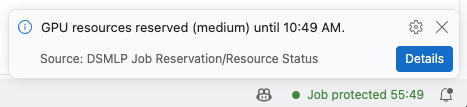
In the Fall 2026 standard images, JupyterLab shows the session's status in the
status bar at the bottom of the window. While the session is inside its
guarantee, the indicator reads Job protected and counts down to the end of
the guarantee. Its color follows the session's state:
| Color |
State |
| Green |
Inside the runtime guarantee |
| Amber |
Inside the guarantee, with another booking due to start when it ends |
| Gray |
Past the guarantee, with nothing waiting for the capacity. See Overstay |
| Red, pulsing |
Past the guarantee and at risk of preemption. The countdown runs to the earliest moment the session could be stopped |
The indicator is hidden when there is nothing to report.

Selecting the indicator, or running Show Job Reservation/Resource Status
from the command palette, opens a dialog with the full detail. A brief
notification appears when the session is admitted, when it moves to a
different reservation, and when it starts running past its guarantee. While the
session is at risk, a notification with a Details link stays on screen. It
closes, with an all-clear, when the warning is withdrawn.
Warning Timings lists how
much notice a warning gives.
VS Code shows the same status in its own status bar, with the same
notifications. Setup instructions for this display in VS Code and other remote
editors are not yet published. For connecting VS Code itself, see
Remote Editor Setup.
From the command line, kubectl describe pod shows the end of the guarantee in
the pod's annotations; see
Reservation Annotations.
A checkpoint written before the guarantee ends survives the end of the window.
From that point, the session can be stopped, extended, or left running.
Back-to-Back Bookings
A booking that starts exactly when the current one ends, for the same GPU
class, the same number of GPUs, and the same workspace, extends the guarantee at
once. The two bookings stay separate reservations in the reservation app.
Any other later booking protects a running session only once it opens. A
session on an on-demand lease moves onto the booking as soon as it opens, and
records a ReservationRelinked event. A session on another booking moves onto
it once the booking is open and the session's own guarantee has ended, and
records an OverstayRelinked event. Between the end of the guarantee and the
opening of the later booking, the session is unprotected, and another member's
booking that starts in that gap can stop it up to 15 minutes before that
booking starts. Extend is the reliable way to keep a
running session guaranteed.
See also: Checkpointing & Logging Long Runs
Overstay
Overstay is running a session past the end of its runtime guarantee.
Overstay draws no Service Units. Its cost is that the session is no longer
protected.
Warning
An overstaying session keeps running with no guarantee. It can be stopped
whenever its GPU is needed, usually with about 15 minutes' notice, and
sometimes less. See Preemption.
The reservation app's Dashboard lists a job running past an on-demand lease
under Running Past Window, with an Extend button. On the pod, the
galends/guarantee-status annotation changes from guaranteed to overstay
within about 5 minutes of the guarantee ending.
Extend brings an overstaying session back under a
guarantee. A longer window arranged in advance is the alternative to overstay;
see Routes to More Time.
Preemption
Preemption is the ending of a session that is past its runtime guarantee,
because its GPU is needed. It is a capacity outcome, not a fault. A session
inside its guarantee is never preempted.
What Triggers Preemption
| Trigger |
When |
| A booking starts, and its GPU class has too few free GPUs |
Up to 15 minutes before the booking starts, and again at its start. The stop stands even if the booking is then never claimed |
| Headroom |
PARASOL (formerly DSMLP) keeps 15% of each GPU class free for on-demand jobs. When less is free, sessions past their guarantee are warned, and can be stopped once at least 15 minutes have passed |
An on-demand lease never triggers preemption. A lease that finds no free GPU
waits.
Which Sessions Are Stopped
Only sessions past their guarantee are candidates. Among them, sessions are
chosen by the type of reservation they ran under: best-effort first, then
on-demand leases, then bookings. Within a type, the choice is random.
Sessions are stopped until enough GPUs are free.
Notice Before Preemption
A session that may be preempted is first marked with termination-warning
annotations on its pod. The notice is usually about 15 minutes, and there is no
minimum. The pod is then deleted in the ordinary way: SIGTERM, a grace period
of 10 minutes for pods started by launch.sh, then a forced stop.
The Termination Warning
describes reading and acting on the warning.
Saved work survives preemption. Anything held only in memory does not.
The session records the outcome as a Preempted event, written just before the
pod is deleted.
See also: Reservation Events
Eviction
A running session is deleted, with no warning beforehand, in two cases:
| Event |
Cause |
ReservationCancelled |
The reservation the session ran under was cancelled while its window was open: by its owner, a workspace manager, an administrator, or a teammate in team mode |
ReservationReassigned |
A teammate adopted the booking in team mode, or it was given to another user |
Before deleting a session for a cancellation, the reservation system moves it
onto another open booking of the same member, where one matches and has room.
A session moved that way keeps running and records a ReservationRelinked
event instead. Both eviction events are type Normal, and the pod is gone by
the time they can be read, so read them with kubectl get events.
See also: Reservation Events
Maintenance Closures
Two maintenance regimes apply: weekly maintenance and quarterly maintenance. The schedule for both is published under
Scheduled Maintenance. Do not
start a 12-hour run that would overlap an announced maintenance window.
Weekly Maintenance
Campus policy requires prompt patching of servers. The weekly maintenance window
is reserved for that patching and is not a scheduled outage.
Weekly maintenance applies to the whole cluster, for courses and research
alike, but usually affects a subset of worker nodes at a time. Scheduling
policy tries to place jobs on nodes that will not be touched, so running work is
generally unaffected. During the window, the platform may operate at reduced
capacity, and, depending on the work being done, the whole cluster can be
briefly inaccessible. A running job can still be terminated, because some
updates require a node to be drained.
Patching is deferred where possible during 10th week and Finals week, unless a
vulnerability requires immediate action. Critical updates occasionally require
work outside the window. ITS notifies instructors and TAs of such work as far in
advance as possible.
Quarterly Maintenance
Quarterly maintenance terminates all running jobs, for courses and research
alike. Jobs are not drained, migrated, or deferred to another node. A multi-day
training run started the day before is lost when the window opens, together
with everything not written to disk.
Windows are placed to avoid the start and end of a quarter, midterm periods, and
known conference deadlines, and each notice is followed by a reminder shortly
before the day. This placement reflects past practice, not a published
commitment. The notice sent for each window governs.
Quarterly maintenance notices are sent from
rcd-support@ucsd.edu, which also answers
questions about them.
GPU Class Availability During Maintenance
When nodes are taken out of service for planned work, the GPU classes they back
have fewer GPUs, or none, for the duration. A class can therefore show nothing
available on particular dates even though no one has booked it. The reservation
app shows the lower figure without a label. Bookings already made are not
cancelled.
A class that shows nothing available on a date may be fully booked or closed for
maintenance. The two cases look identical to a user. While a class is short of
nodes, a GPU session waiting for an on-demand lease records an
OnDemandAdmissionPaused event.
Where a class in regular use shows nothing available across a specific span of
days and no notice has been sent, report it to
parasol@ucsd.edu instead of assuming demand.
See also: When the Cluster Is Full
Jobs Ending Outside Any Window
Worker nodes are patched on demand, year-round, without user notification. Only
the JupyterHub, login, and file-server components follow the notified schedule.
The worker nodes that run containers are maintained as the need arises.
On-demand patching can end a job cleanly, at no particular time, with no error
from the job and no maintenance announcement. This is not the common case, and
it cannot be scheduled around.
Report a problem with this page